How it works
Describe your buyer once. Get the people who match and are signaling right now, scored against your offer, with a verified email.
Written By Kevin Lawrie
Last updated About 2 hours ago
What it does
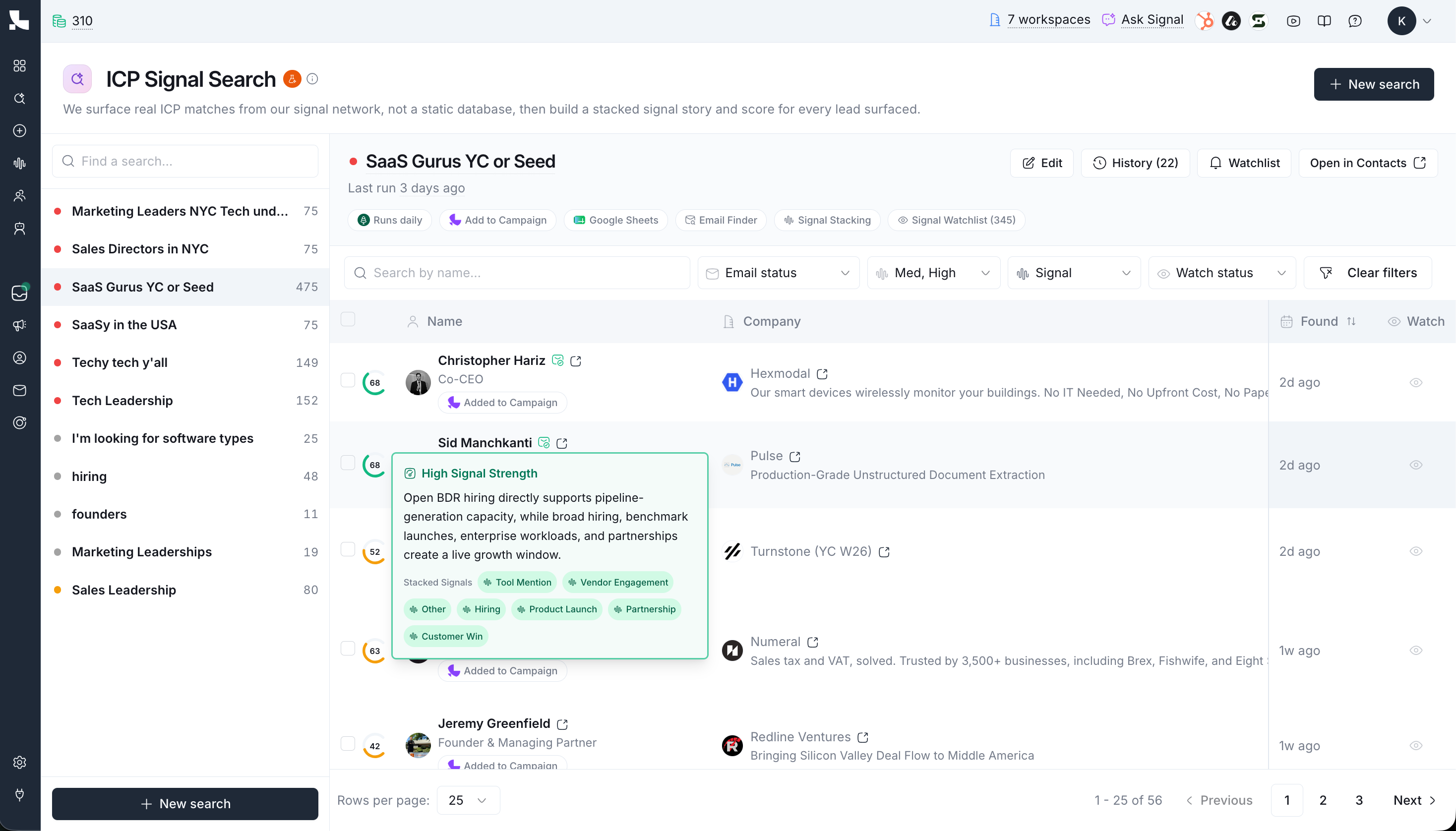
Most signals start from a post, a keyword or a page, and catch whoever engages. ICP Signal Finder works the other way. You describe who you sell to, and we go find those people across the Leadfwd signal network.
For every match we build a signal profile: what they posted, what they commented on and what they said, what their company is announcing, who they're hiring. Then we score how clearly that person is showing a need for what you sell, and tell you why.
You get named people, not accounts. Each one comes with a score, a band, a one-line reason and a verified work email.
Use it when you know your buyer but don't have a post or a competitor to watch. It also works where engagement capture struggles: narrow geographies, broad title families, and niche segments like "YC-backed startups."
Build from AI generated Firmographics
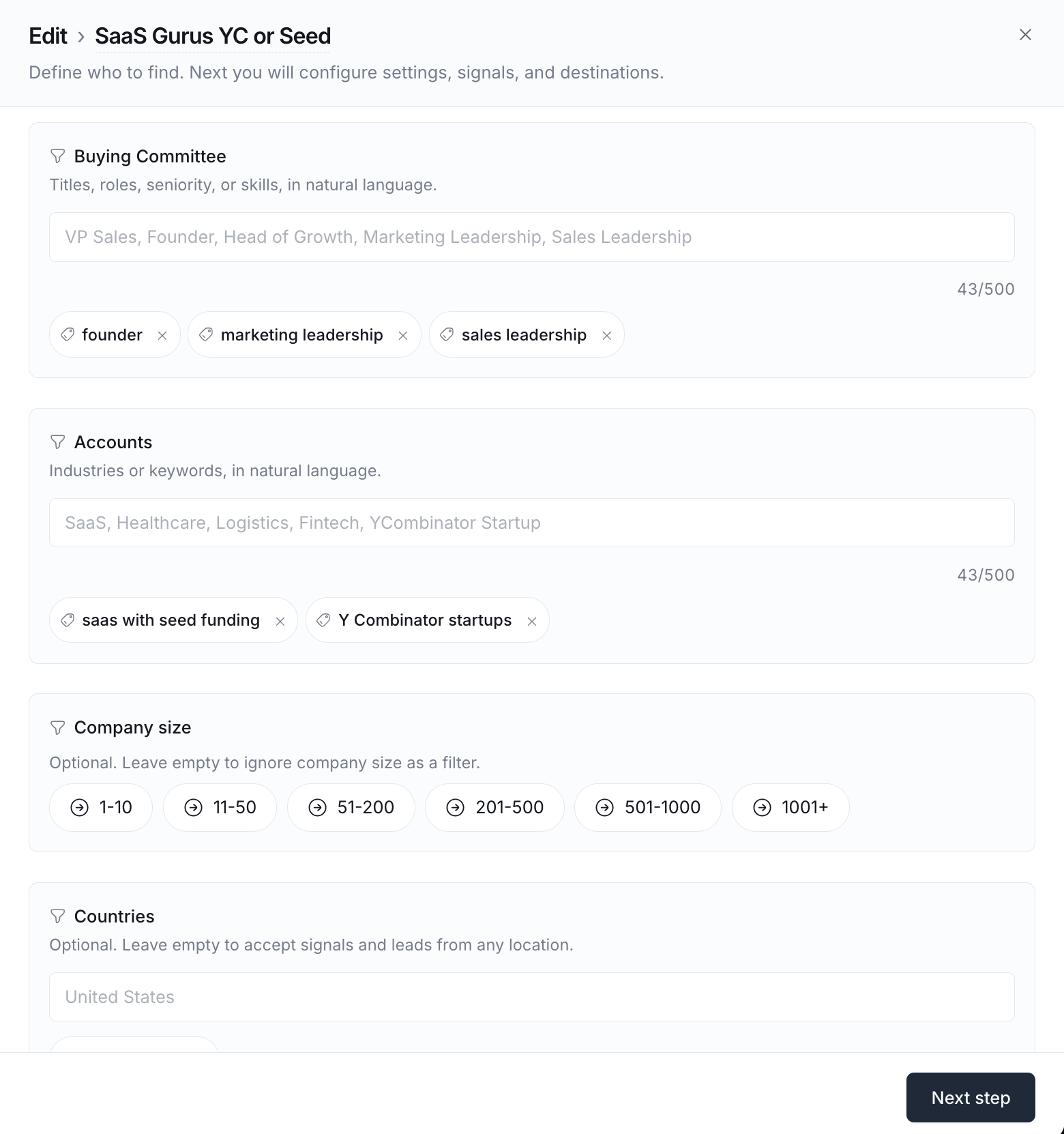
If you finished the setup wizard, we built your firmographics from your website and drafted your first search from them. It's in ICP Signal Search in the sidebar. Open it, check the titles and countries, and save. Finishing setup also adds 400 bonus credits to your account.
If you didn’t run the setup wizard, you can generate firmographics at any time from https://app.leadfwd.ai/settings/firmographics
Create a new ICP search
Open ICP Signal Search in the sidebar.
Click New search.
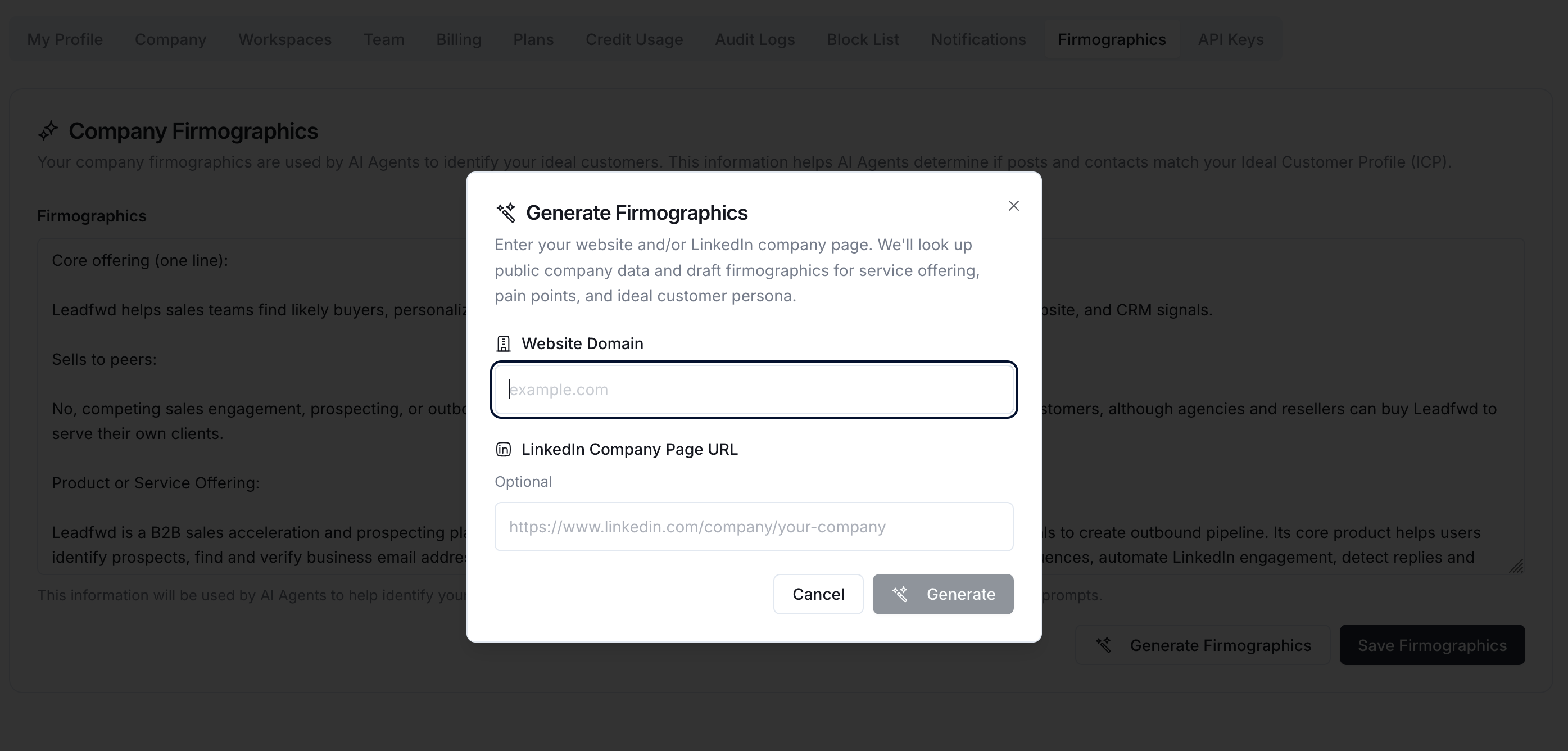
Give it a name and describe your audience. Titles and countries are required. Industries, company size, states and cities are optional.
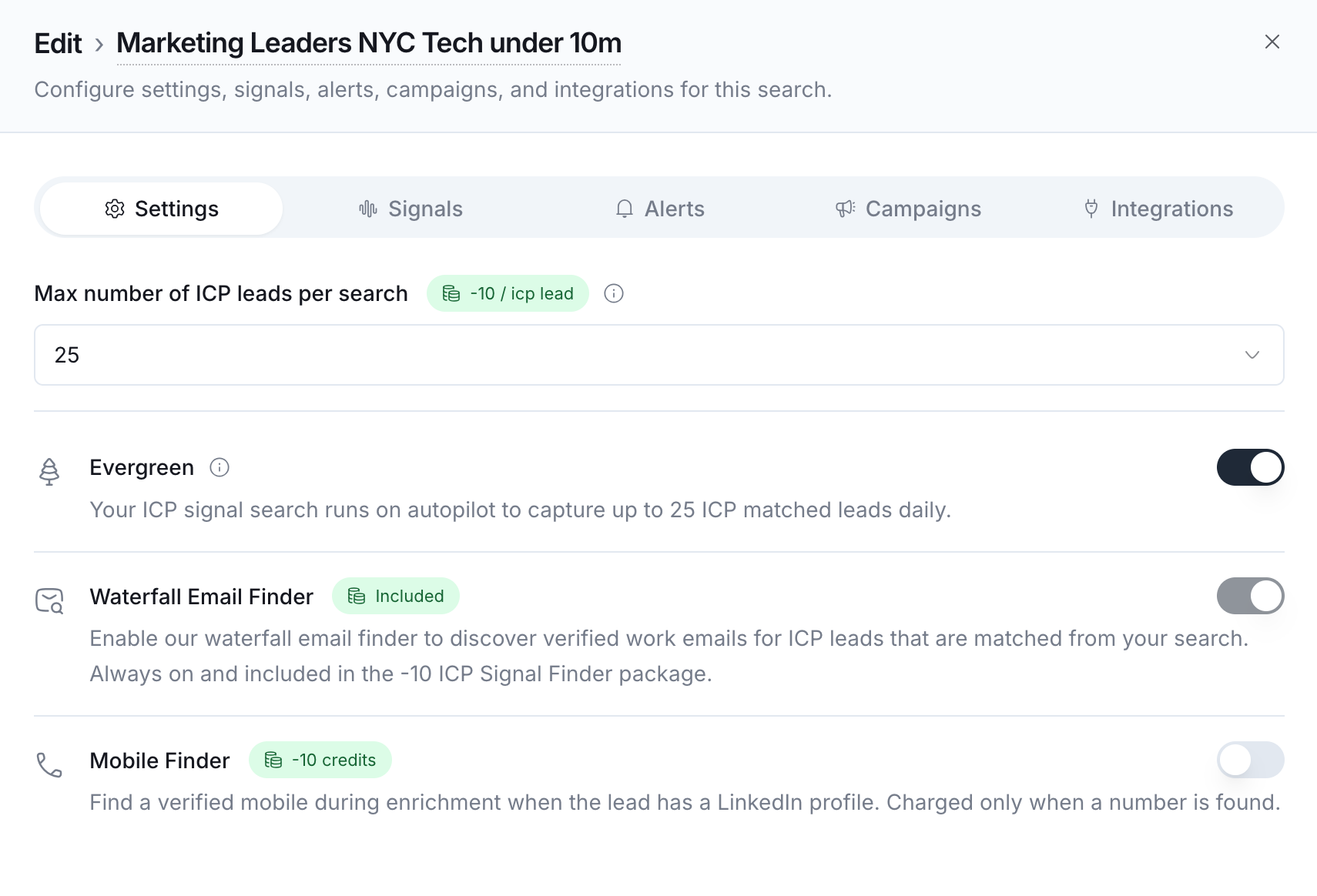
Choose how many new leads to find per run: 10, 25, 50 or 100. Default is 25.
Leave Evergreen on to run every day. Turn it off for a one-time run.
Choose your enrichment, Watchlist and destinations (below).
Click Save and search.
To change a search, click the pencil icon, edit and save. Changing titles, locations or company sizes restarts the daily location rotation from the first slice.
Search fields
Write titles and industries in plain words. "Head of RevOps" and "B2B SaaS selling to mid-market" both work.
What every lead includes
Stack Signal Intelligence is on by default, and we recommend leaving it on. With it on, each lead costs a flat 10 credits and includes:
The contact saved to your workspace and to a list for this search
Their social footprint: posts they wrote, posts they commented on, and what they said
Company activity: posts, announcements, funding, hiring
AI research and the signal score, with the reason
A verified work email from our waterfall
One price, no separate charge for the email or the research.
Signal Strength
Every stacked lead gets a score from 0 to 100. It measures how clearly the person is showing awareness of the problem you solve, based on your firmographics.
The reason is written in plain words on the contact, in the Sheet, and in every push. It's the first line of your outreach if you want it to be.
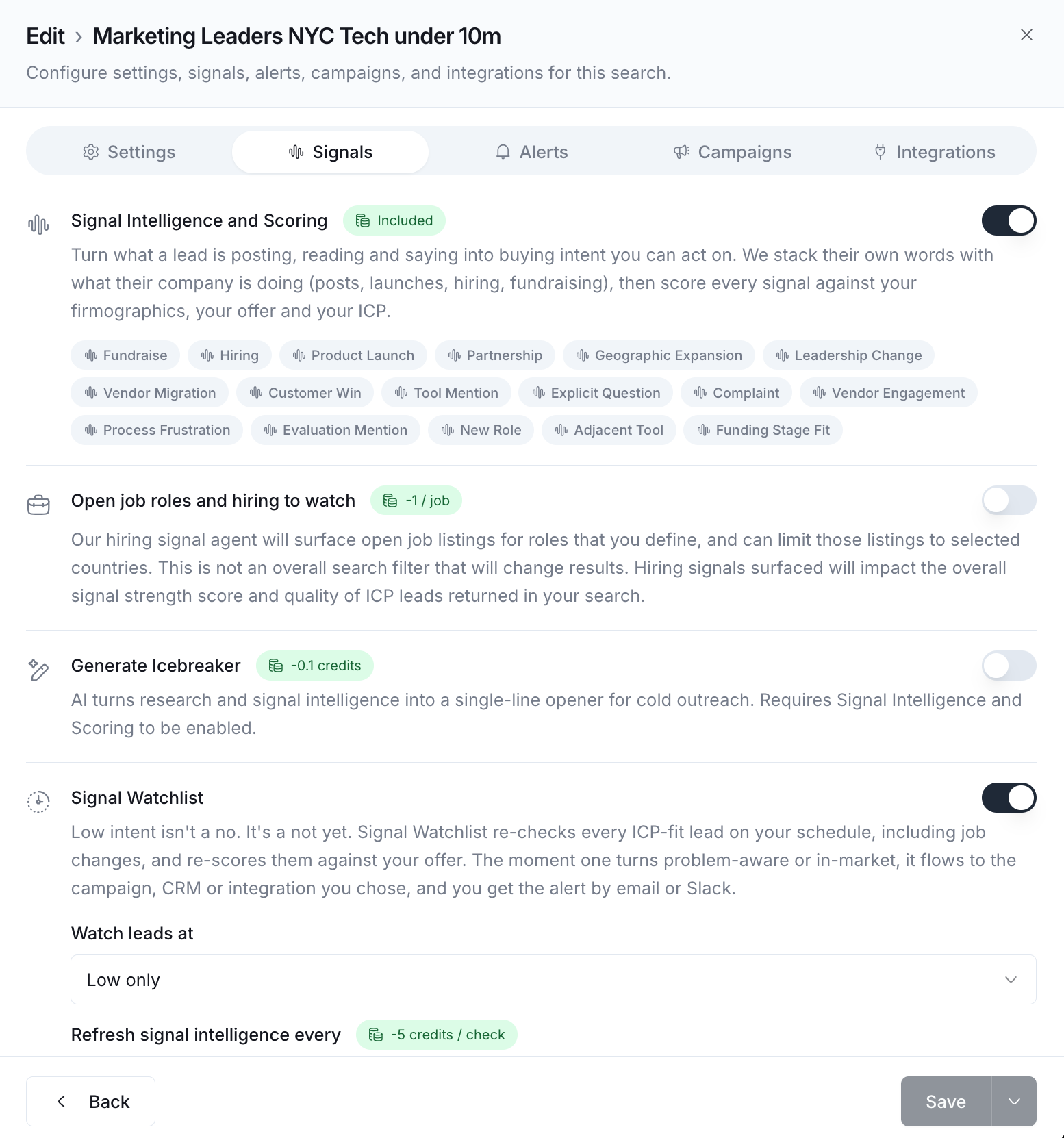
Signal Watchlist
Low and Medium leads aren't wasted. Turn on the Watchlist and we re-check them on a schedule. When someone moves up a band, you get a Watch Alert.
Watch: Low, Medium, or both. Default Low.
Check every week, every two weeks, or every month. Default monthly.
Each re-check costs a flat 5 credits per lead. Weekly costs more over a month than monthly because it runs more often.
Get alerts by email, Slack, or both.
Watch Alerts only fire on upward moves. You'll find them under Watch Alerts on the search, with a link to that person's updated brief.
Optional enrichment
Sync to Campaigns and Integrations
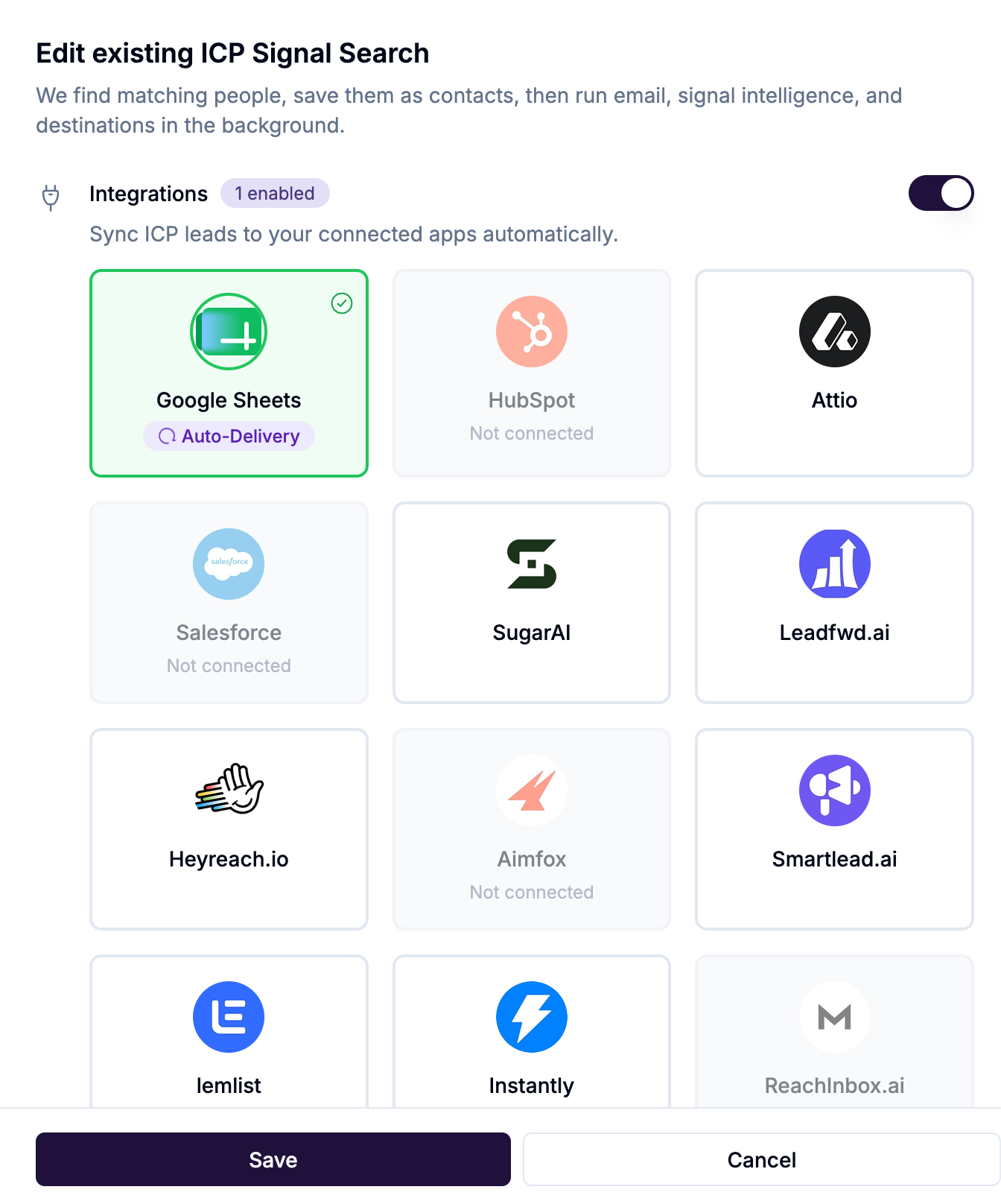
Every lead lands in Contacts, in the search's list, and in a daily Google Sheet. The Sheet can be delivered by email or Slack, so your team sees new leads without logging in.
You can also send leads onward:
Leadfwd campaigns. Enroll new leads straight into a social or email sequence.
Outreach tools. Instantly, Smartlead, lemlist, HeyReach, Woodpecker, ReachInbox, Aimfox.
Clay or any webhook. Send each new lead to a saved webhook.
CRM. HubSpot, Attio and SugarAI. Salesforce on Enterprise.
Connect apps first under Settings, Integrations.
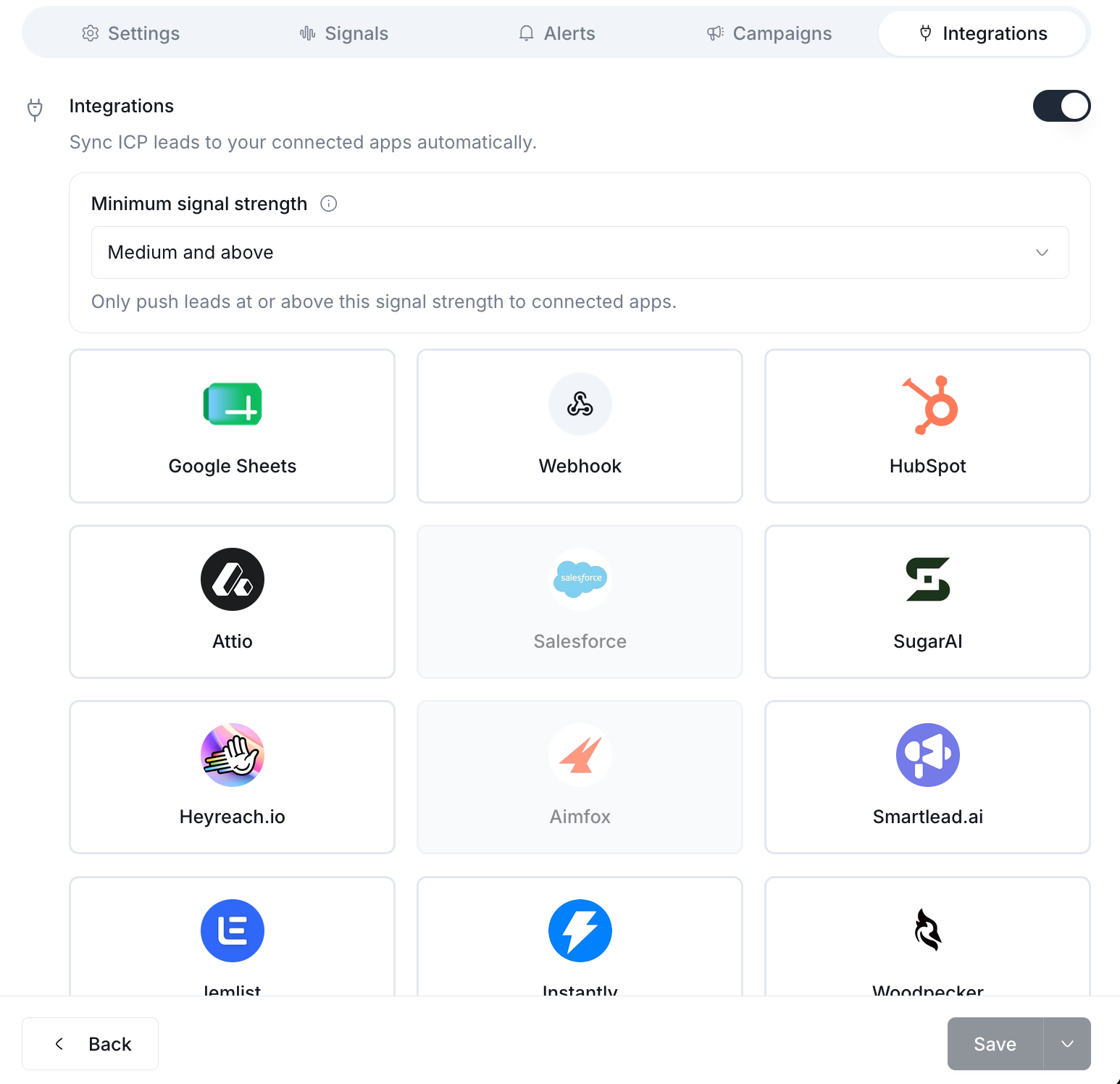
Signal strength gates
You can keep weaker leads out of sequences and connected apps. Set the gate to Any, Medium and above, or High only, separately for campaigns and integrations.
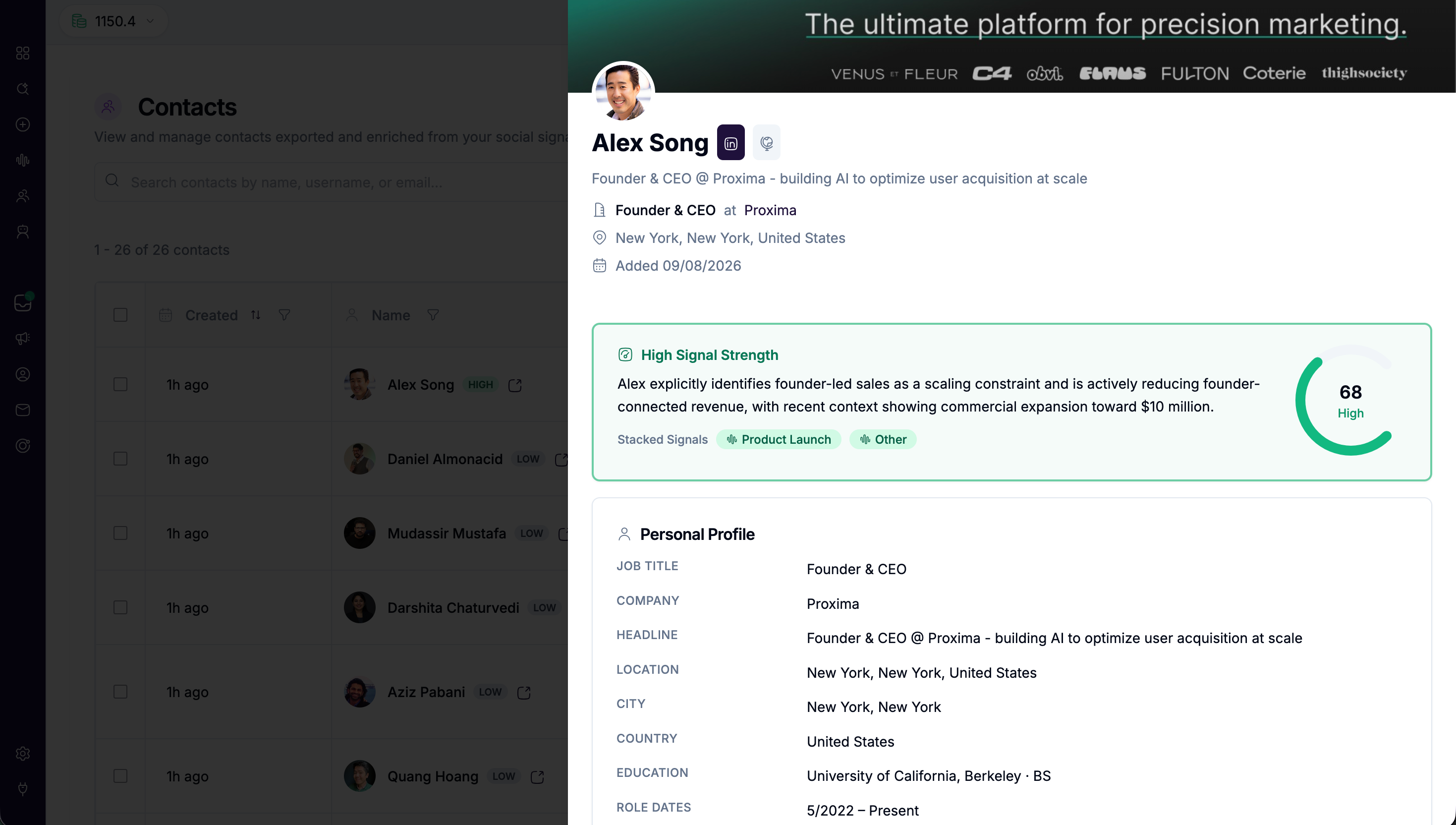
Reading your results
Click Leads found to see everyone the search has surfaced. Open a contact to see the Signal Strength card, the research properties, and the standard contact fields.
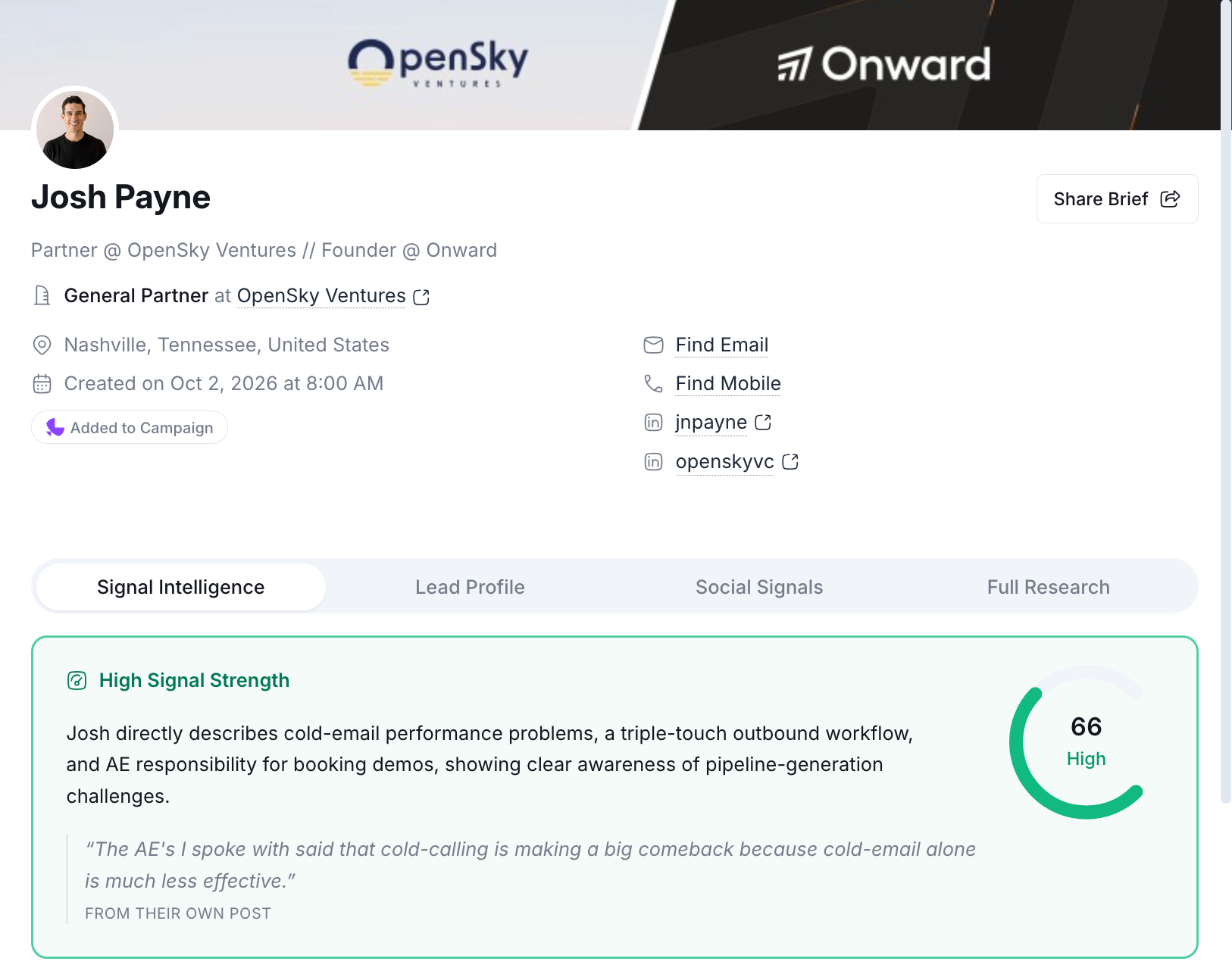
What's saved on each lead
Profile: name, profile link, title, company, location, education, photo
Company: domain, firmographics, funding
Email and verification status
Signal Strength, band and reason (placed right after Company in the Sheet)
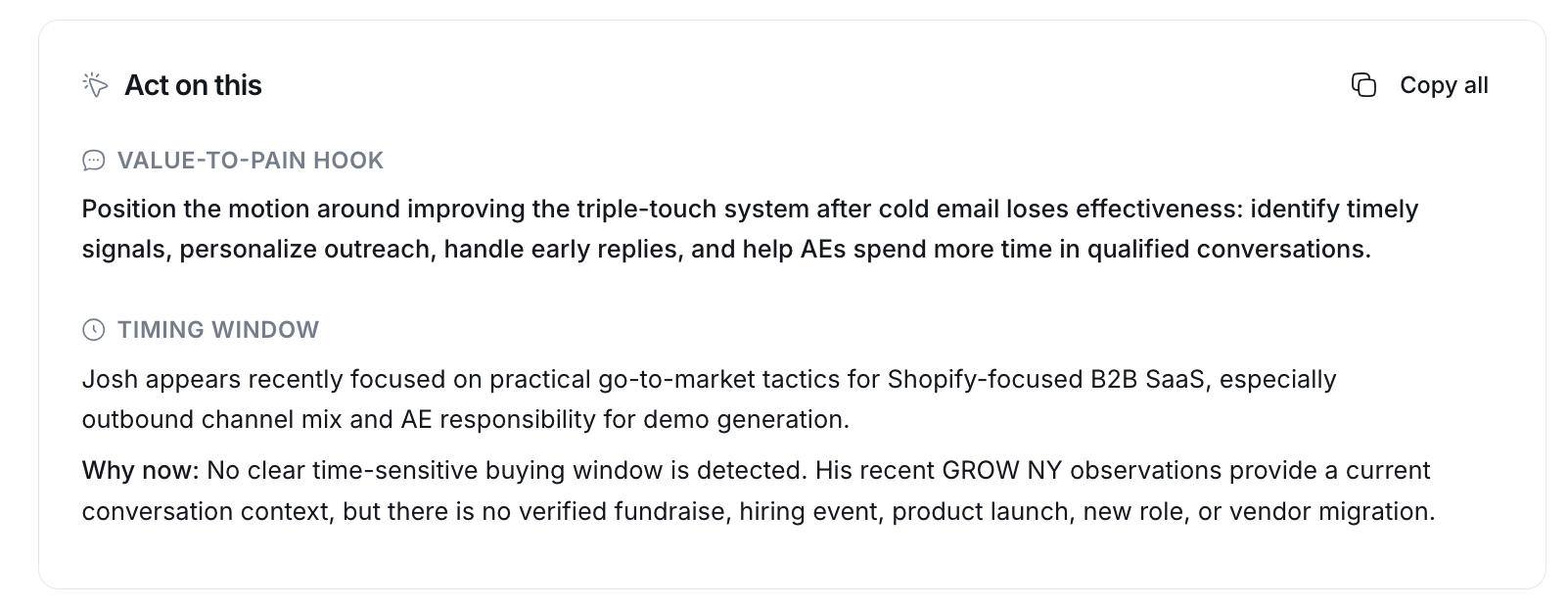
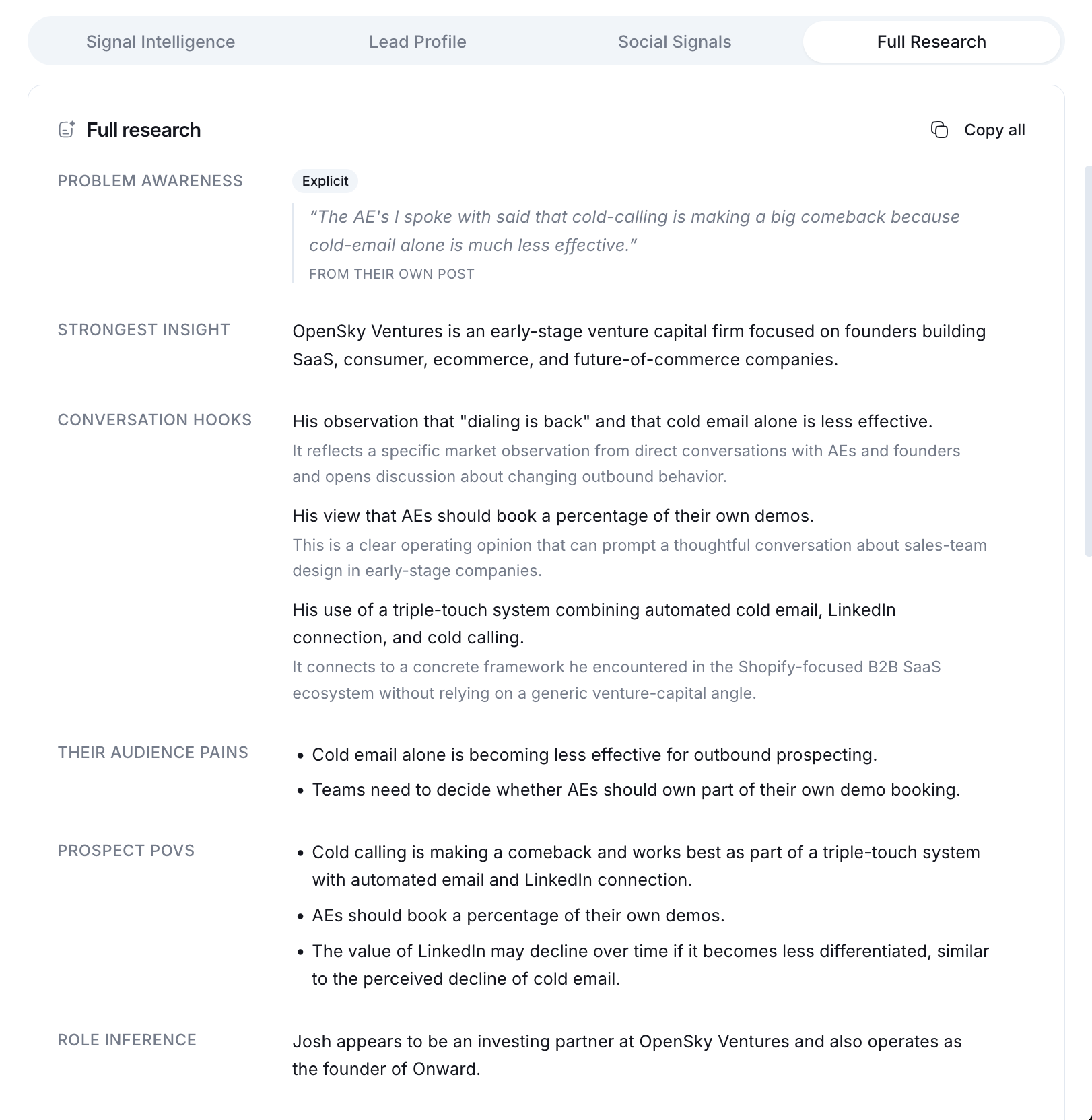
Research fields, shown as Custom columns: role, company description, business model, their product and audience, pains, points of view, phrases they use, strongest insight, icebreaker, communication style, company and buying signals, tools mentioned, timing window, conversation hooks, data richness, and how well their pain matches your offer
Open roles, if hiring watch is on
Credits at a glance
Duplicates are free. If a run finds someone already in your workspace, they're linked to the list at no charge.
Use it from Claude, Cursor or your own agent
ICP Signal Finder is fully available over our REST API and MCP server on every plan. You can create, edit, pause, resume and run searches, pull leads by band or score, and read Watch Alerts, all from an AI assistant. Point it at the ICP Signal Search tools and describe what you want.
FAQ
Why did a lead get a Low score if it matched my ICP?
Matching the ICP gets someone into the search. The score is about timing: how clearly they're showing the problem right now. Low leads are worth watching, which is what the Watchlist is for.
Does hiring watch shrink my results?
No. It only feeds into the score.
I saw the same location two days in a row.
Each run stores the main location slice it used. Expand Runs to see what was returned, what was new and what was a duplicate.
A step after saving failed. Did I lose the lead?
No. The contact is still saved. Click the red chip on the contact to see which step failed.
Do band gates save me credits?
No. Gates decide where leads are sent. Every stacked lead costs 10 credits whether it passes the gate or not.
What happens when I run out of credits?
New leads stop at the next run and Watchlist re-checks pause. Everything already found stays in your workspace and your Sheet.
Was this helpful?
Still need help? Ask the team